Quick Video Clip Editing
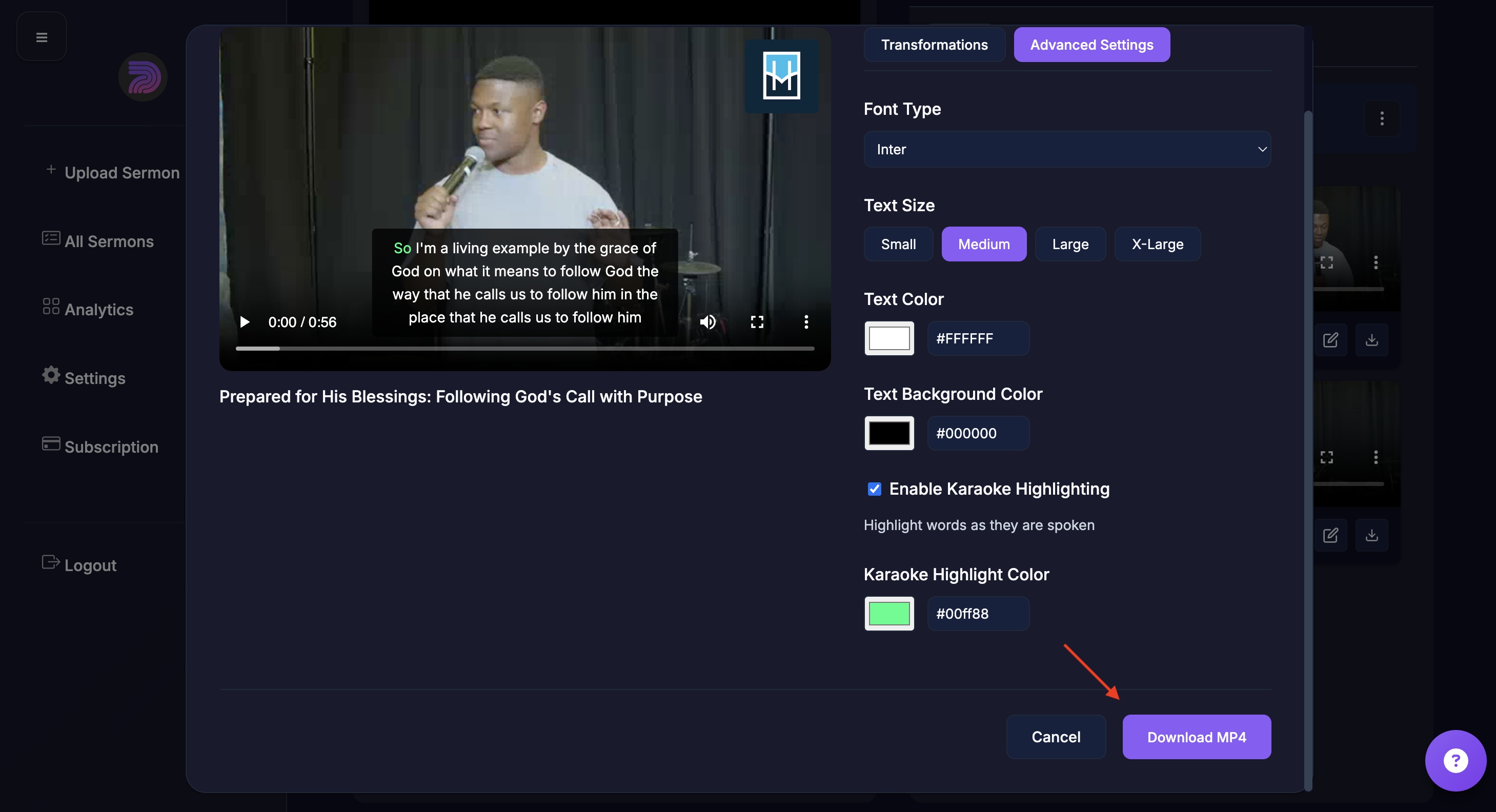
- Select your sermon, and go to Video > Clips.
- Clip the edit icon on an existing clip.
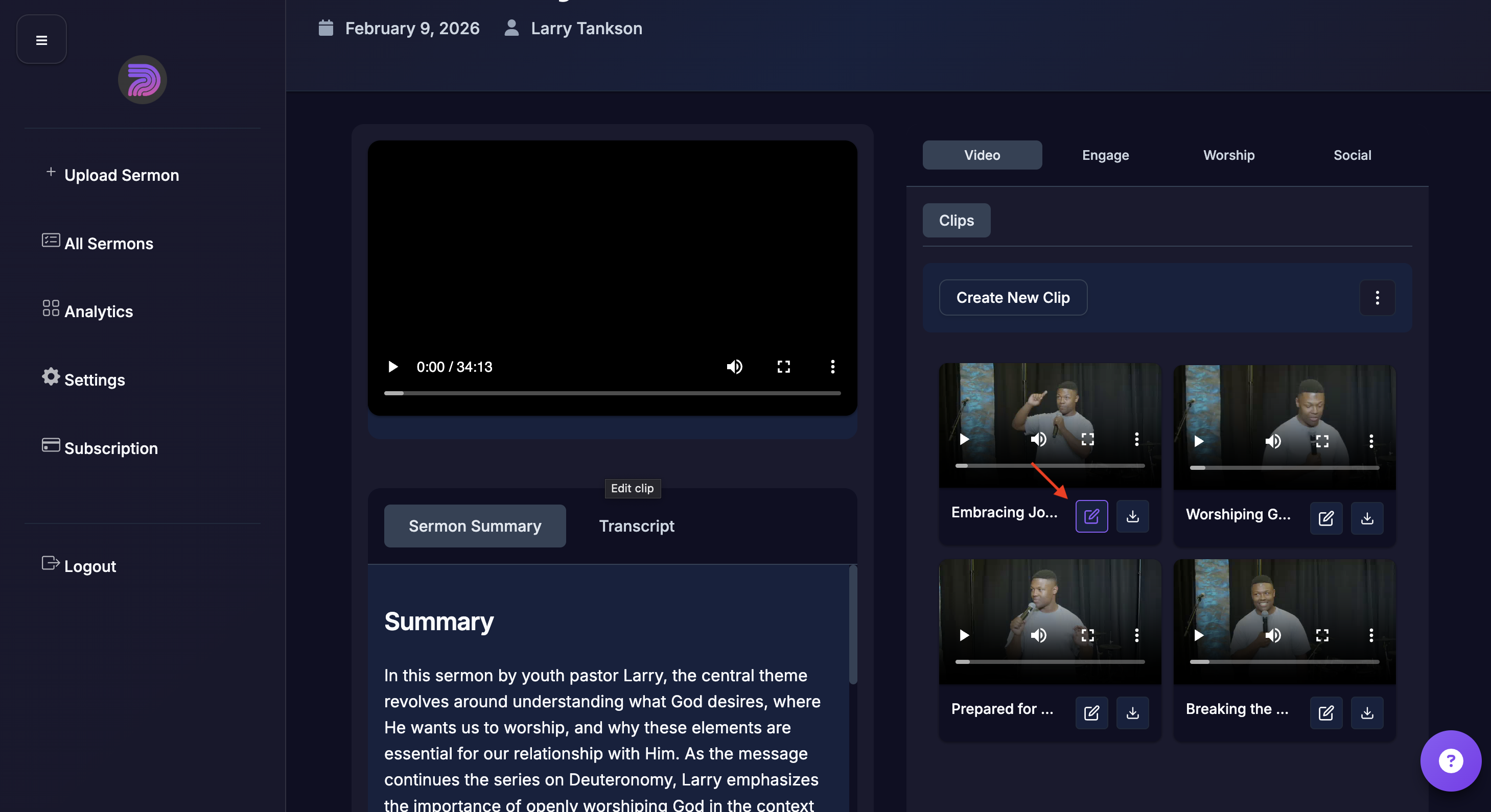
Transforms
- Set the aspect ratio (Mobile, Desktop, Square).
- Enable or disable subtitles.
- Set subtitle position (Top, Middle, Bottom).
- Add the church logo to the video.
To add a church logo, you'll need to upload your church logo in your Settings.
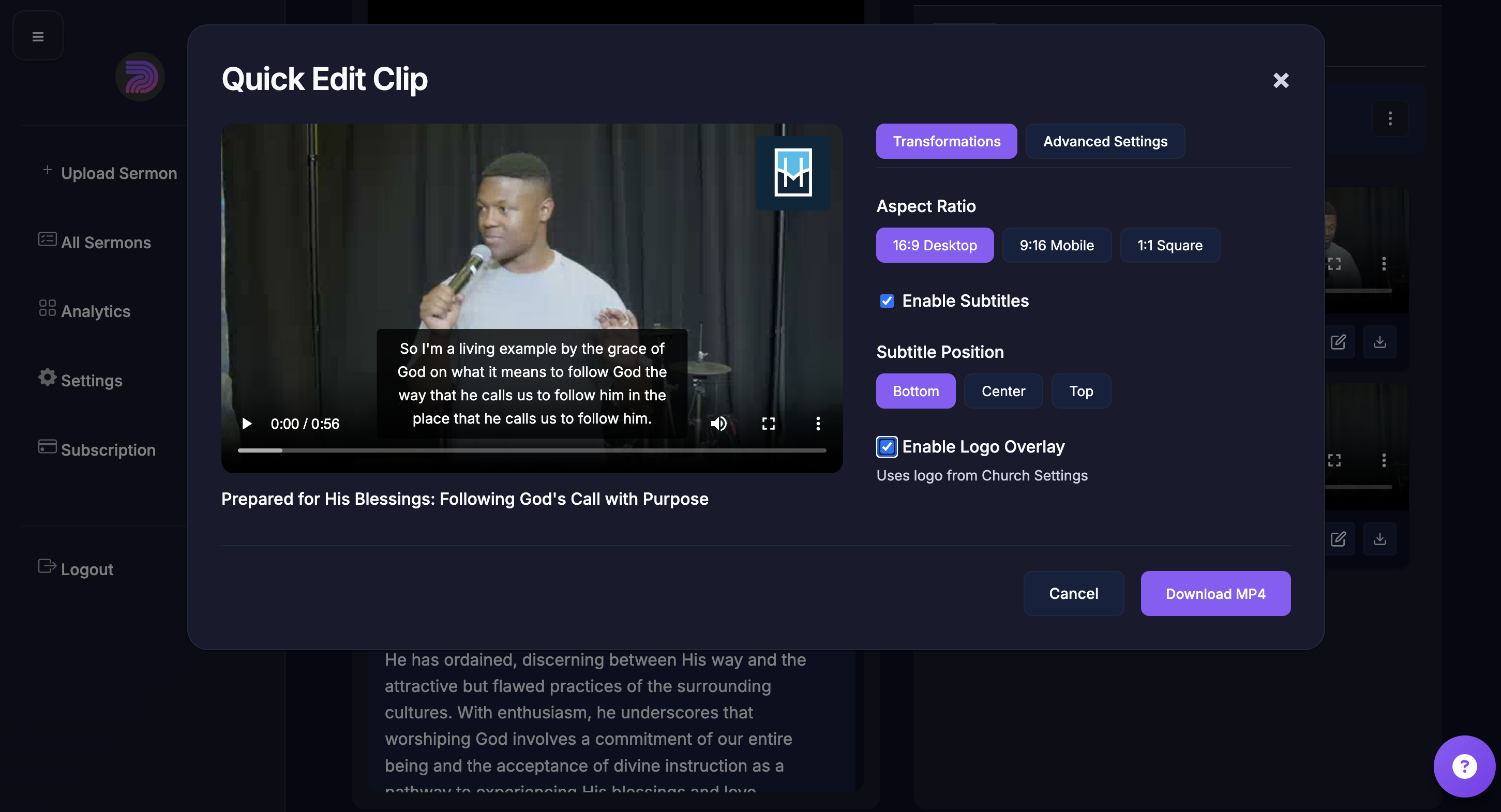
Advanced Settings
- Text Size: Small, Medium, Large, X-Large
- Set Text Color, and Text Background Color.
- Enable Karaoke Highlighting.
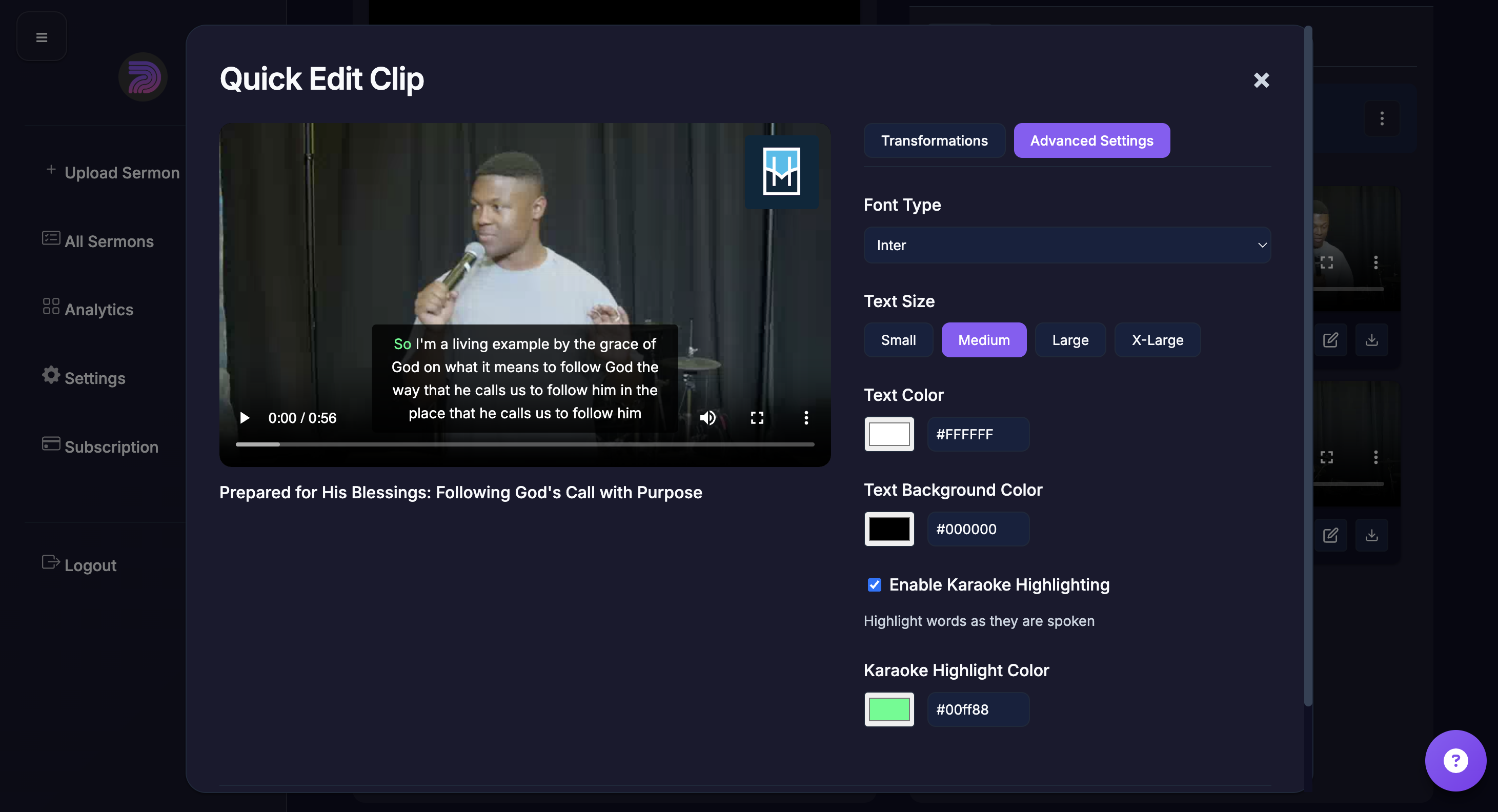
When you are ready, click download MP4.